working with images
There are three ways to add images to your page — drag a toolbar icon, drop from your desktop, or pull from another browser tab.
- Drag and drop the toolbar image icon onto the page, click the blue placeholder and upload one or more images.
- Drag and drop one or more images from your desktop.
- Drag and drop an image from another browser tab (another website).
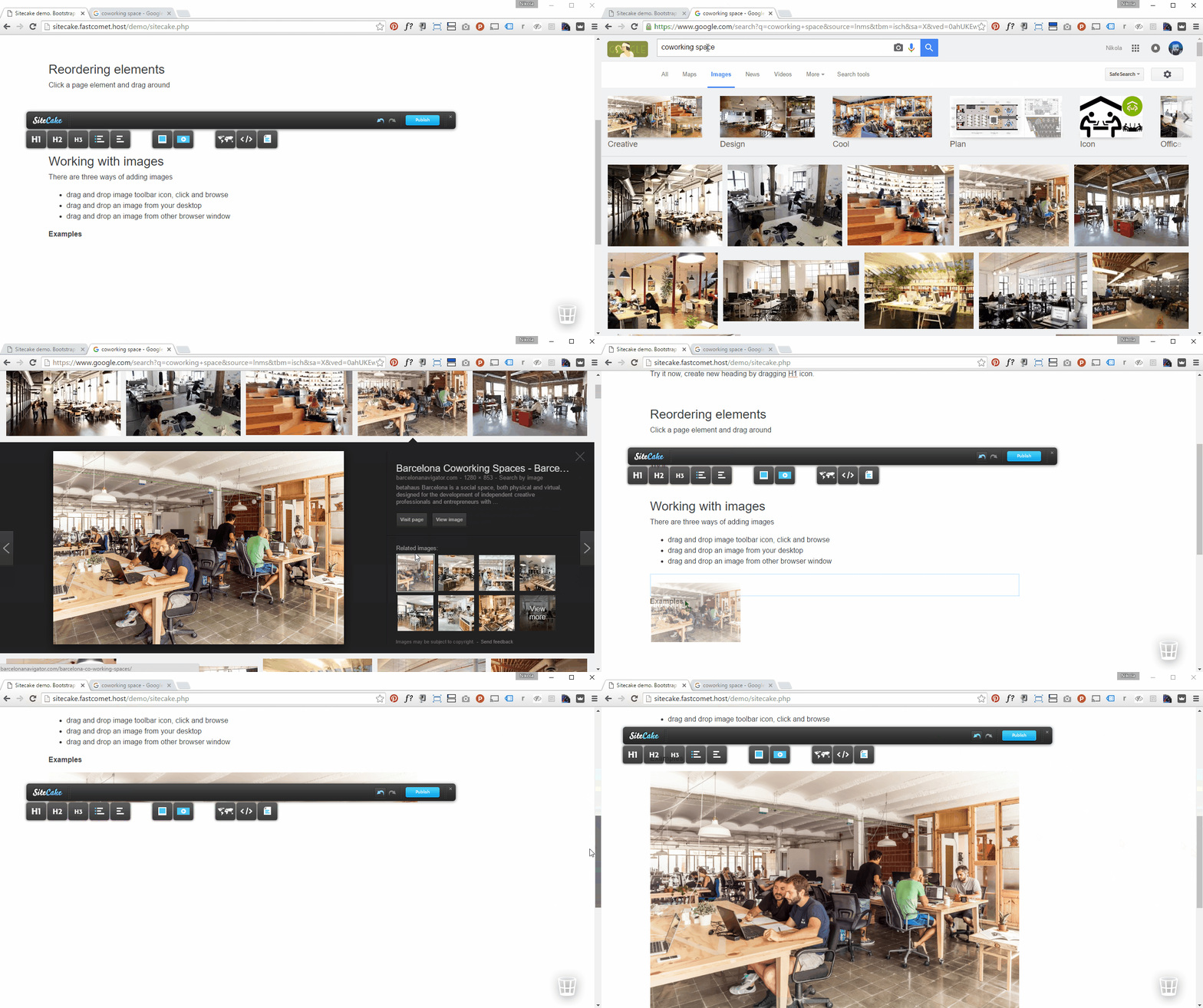
Images are uploaded in the background so you can continue editing during the upload. This is useful if you need to upload a lot of large images — upload them all at once and position them on the page later.
Once an image is uploaded you can resize or crop it:
- One click on the image — enter resize mode (drag the corners)
- Click again — enter crop mode (drag to crop)
ENTER or double-click will exit image editing and save changes.
Gallery
Drop 2 or more images from your
desktop into a content area at once and Sitecake
arranges them into a gallery automatically — no
separate toolbar icon needed. Galleries carry the
sc-gallery class, so you can style the
grid with your own CSS.
On the published page, clicking any image in the gallery opens a lightbox visitors can swipe or click through to see the full set.