page manager
With the page manager you can clone, rename, and delete pages. Change the page title, description, and URL to improve search results. Create a top menu and add pages to it.
How it works
The page manager is invoked by pressing P on the keyboard or clicking the three-boxes icon on the toolbar. You’ll see two main sections: Menu items and HTML pages.
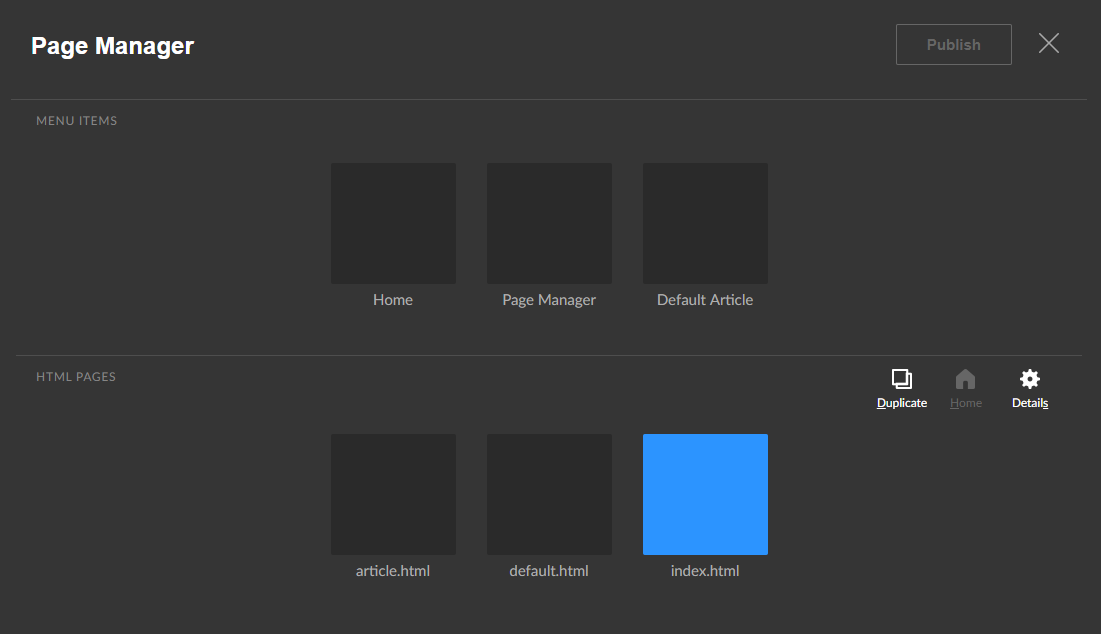
HTML pages section
You can do several things with pages:
Select a page — click a page and it turns blue.
Duplicate a page — select a page and click the Duplicate icon to clone it.
Set a new home page — use the
Home icon. The new home page will be named
index.html.
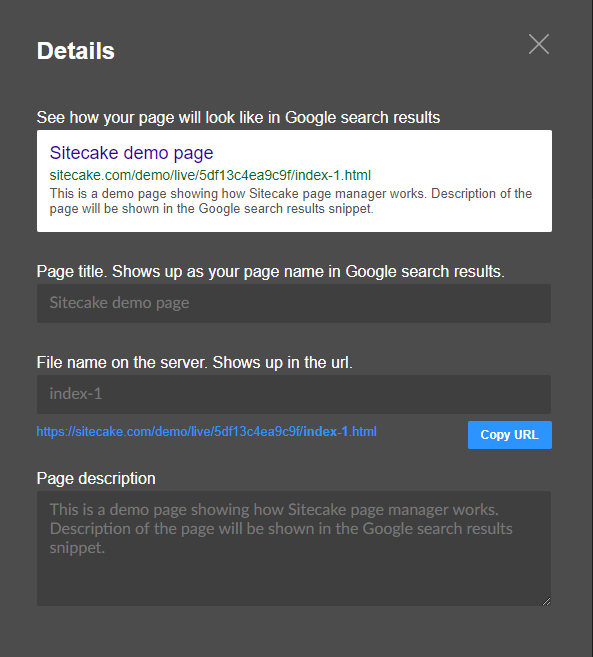
Open page details — select a page and click the Details icon to change the page title, description, and URL. You can preview how the page will appear in Google search results.
Add page to main navigation — drag and drop a page icon to the Menu items section. Click the name below the icon to rename how it appears in the navigation.
Navigate to a non-linked page — pages not linked from the main nav or content can be found in the HTML pages section. Double-click to open.
Rename a page — open the Details panel and enter a new file name.
Move to a new folder — enter both
the folder and name as
folder/pagename.html. If the folder
doesn’t exist, Sitecake creates it.
Delete — drag and drop any page to the trash can icon.
Menu items section
Four things you can do with menu items:
Add — drag a page to the Menu items section.
Rename — click the text below a menu item box.
Reorder — drag and drop menu items into the order you want.
Delete — drag a menu item box to the trash can.
How to add Sitecake main navigation
Sitecake recognizes an unordered list of links with the
sc-nav class as the navigation. You can
have one or more instances on a page.
<ul class="sc-nav">
  <li><a href="#" class="active">Home</a></li>
  <li><a href="#">About</a></li>
  <li><a href="#">Contact</a></li>
</ul>
Sitecake assigns the active class to the
currently active page. An alternative choice of tags and
active class can be set through config.php.
If you have added navigation to all your pages manually, make sure it’s the same on every page. If one page has three menu items and another has only two, Sitecake won’t know which to use.
Managing pages in subfolders
To manage pages in subfolders, create a
.scpages file in your site root and list
all folders with editable pages inside, one per line:
blog/
docs/en/
docs/fr/